
Guides
How to Save a Webpage as a PDF (Without the Usual Mess)
Ctrl+P works until images come out blank and text gets cut off. Three ways to save a webpage as a PDF — and how to get a copy that looks like the real page.
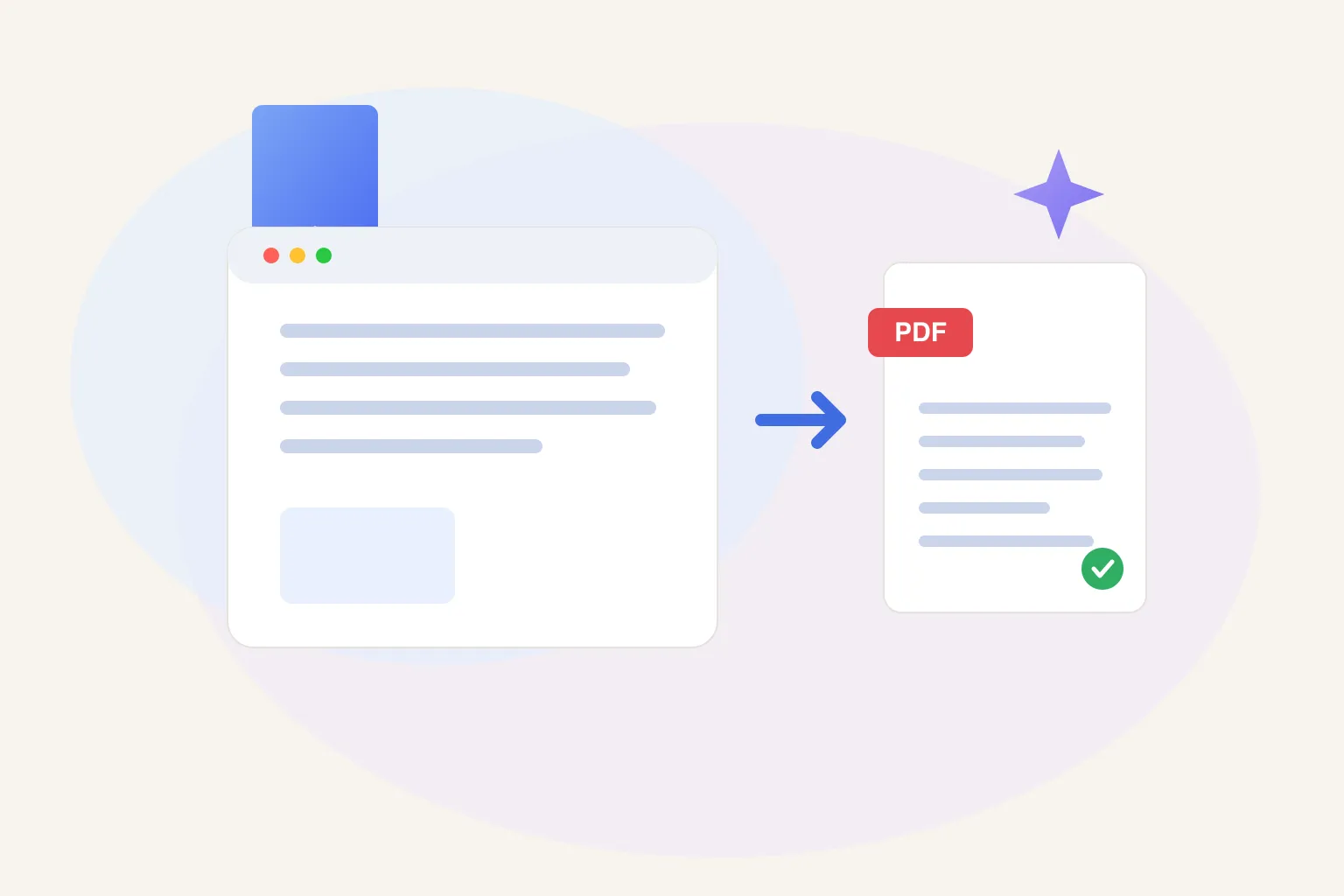
To save a webpage as a PDF, press Ctrl+P (Cmd+P on Mac) and choose Save as PDF as the destination. That works in a pinch. For a capture that looks like the actual page — images loaded, nothing cut off — use a browser extension that snapshots the screen layout instead of the print layout.
That second sentence is doing a lot of work. Everyone knows the print trick; the reason you’re reading this is that the result so often looks wrong. This guide covers the three real ways to convert a webpage to PDF — the built-in dialog, converter sites, and an extension — and is honest about where each one breaks.
How do you save a webpage as a PDF with the print dialog?
The built-in way works in Chrome, Edge, Firefox, and Safari, on every operating system, for free:
- Open the page and let it finish loading.
- Press Ctrl+P on Windows and Linux, or Cmd+P on Mac. (In Chrome, this is the same as Menu → Print.)
- Set the Destination to Save as PDF.
- Under More settings, turn on Background graphics if the preview looks washed out, and nudge the scale down if text is clipping at the edges.
- Click Save and pick a location.
For a simple article page — one column, mostly text — this is genuinely fine, and it should be your default. Nothing to install, nothing uploaded anywhere, and it works behind logins because it captures your own browser session.
The trouble starts on real-world pages. Four failure modes come up constantly:
- The layout breaks. The page renders in its “print” style, not the one you were looking at, so columns collapse and spacing goes strange.
- Images come out blank. Anything below the fold that hadn’t loaded yet prints as an empty box.
- The junk gets captured. Cookie banners, newsletter popups, and chat bubbles land right in the middle of the capture.
- Content gets cut off. Wide tables, code blocks, and fixed-width sections get clipped at the page edge.
If the print preview looks right, ship it. If it doesn’t, no amount of margin-fiddling will reliably fix it — the problem is in how the page is being rendered, not in your settings.
Why do webpages get cut off or come out broken as PDFs?
Because printing doesn’t capture the page you’re looking at — the browser rebuilds the page for paper and captures that instead. Three things go wrong in the rebuild:
Print stylesheets. Many sites ship a second set of layout rules that only apply when you print. They were written once, years ago, usually for a simpler version of the site. The moment you hit Ctrl+P, the page you see is swapped for this print version — and if it’s stale or half-finished, the PDF inherits every flaw.
Lazy loading. Modern sites don’t load every image up front; they load them as you scroll near them. The print dialog doesn’t scroll. So any image you never scrolled past simply doesn’t exist yet when the capture runs, and it prints as a blank box or a gray placeholder.
Viewport-dependent layouts. Pages size themselves to your browser window, which might be 1,400 pixels wide. Paper is a fixed, narrower canvas. Flexible elements reflow to fit; fixed-width elements — tables, embeds, code blocks — don’t. Whatever can’t shrink gets sliced off at the printable edge. That’s the “webpage cut off” problem in one sentence.
Popups and cookie banners are a fourth, dumber issue: overlays are just page elements like everything else, so unless you dismiss them first, they print too.
The fix for all of this is the same: capture the screen layout — the page as your browser is actually rendering it — instead of asking the browser to rebuild it for paper.
Should you use an online webpage-to-PDF converter?
Converter sites let you paste a URL and download a PDF, with nothing to install. That’s a fair fit for a one-off capture of a public page — say, on a locked-down work machine where you can’t add extensions.
They come with three real downsides:
- They can’t see pages behind logins. The converter’s server fetches the URL fresh, with no access to your session — so private dashboards, order confirmations, and members-only content come back as a login wall.
- You’re uploading the URL to a third party. For anything sensitive, that’s a hard no.
- The free tiers are ad-heavy, and output quality varies wildly from site to site.
Use them for public, non-sensitive, one-time captures. For anything else, keep the capture inside your own browser.
How do you save a webpage as a PDF that looks like the real page?
Use the Marqly extension. Its Save as PDF captures the page as it actually looks on your screen — screen layout, not print layout — which sidesteps every failure mode above:
- Install the Marqly extension (free).
- On the page you want, click the Marqly icon to open the save dialog.
- Open the ⋯ menu in the dialog and choose Save as PDF.
- Pick format and layout options if you want them, or accept the defaults.
- The PDF downloads to your machine — and the page is bookmarked in your Marqly library at the same time.
Under the hood, it pre-scrolls the page first, so lazy-loaded images are fully loaded before the capture runs — no blank boxes. And because it snapshots the screen rendering rather than a print stylesheet, wide layouts come through the way you saw them instead of being clipped.
Two honest caveats. The highest-fidelity capture works on Chrome and Edge; on other browsers the extension falls back to the standard print flow, so you get the same result as Ctrl+P. And everything runs locally in your browser — the page is never uploaded anywhere — which also means it works fine behind logins.
The part that’s easy to undersell: the PDF and the bookmark travel together. A loose PDF in your Downloads folder is where documents go to die. Here, the frozen copy and the live link sit in the same library entry, so six months later you can find either one.
Which method should you use?
| Print dialog | Converter site | Marqly extension | |
|---|---|---|---|
| Looks like the real page | ⚠️ Print layout, often breaks | ⚠️ Hit-or-miss | ✅ Screen layout (Chrome, Edge) |
| Lazy-loaded images included | ❌ Blank below the fold | ⚠️ Depends on the site | ✅ Pre-scrolls first |
| Works behind logins | ✅ Yes | ❌ No | ✅ Yes |
| Stays with your library | ❌ Loose file | ❌ Loose file | ✅ Bookmarked automatically |
Short version: print dialog for simple article pages, converter sites for one-off public captures on machines you don’t control, and the extension when the PDF needs to look like the page you saw.
When should you save a PDF instead of just bookmarking?
Save a PDF when you need to freeze a moment in time. A bookmark points at a live page; the page can change, get paywalled, or disappear — link rot claims a startling share of the web every year. A PDF is your proof of what the page said on the day you saved it.
That makes PDFs the right call for:
- Receipts, invoices, and order confirmations
- Booking and reservation details
- Terms, policies, and pricing pages you might need to cite later
- Anything you expect to be edited or taken down
For everything else — articles, references, research — a bookmark is better, because it stays searchable and current. Better still, bookmark it and highlight the parts that actually matter, so you keep the insight without hoarding a file. If your saved pile is mostly long reads, a proper read-it-later app beats a folder of PDFs by a mile.
The workflow that holds up long-term: bookmark by default, PDF the irreplaceable stuff, and keep both in one searchable place — that’s the boring, reliable core of organizing your bookmarks so they’re findable later, and the first honest step toward building a second brain instead of a junk drawer.
Save the page, keep the link
Ctrl+P will always be there, and for a plain article it’s all you need. But the day you need a page captured exactly — images loaded, nothing cut off, no cookie banner photobombing the middle — the print dialog is the wrong tool.
Install the free Marqly extension, open the ⋯ menu when you save a page, and hit Save as PDF. The frozen copy lands on your machine, the live link lands in your library, and nothing leaves your browser.
Related: How to organize bookmarks so you can actually find them · The best read-it-later apps in 2026
Frequently asked questions
- How do I save a webpage as a PDF for free?
- Press Ctrl+P on Windows or Cmd+P on Mac, set the destination to Save as PDF, and click Save. Every major browser has this built in and it costs nothing. It works well on simple article pages. On layout-heavy pages expect broken formatting, blank images, and cut-off content, because the browser prints a print-styled version of the page rather than what you see on screen.
- Why do webpages get cut off when I save them as PDF?
- Because the print dialog re-renders the page for paper, not for your screen. Sites ship a separate print stylesheet, fixed-width elements don't reflow to fit the page, and anything wider than the printable area gets clipped at the edge. Tools that capture the screen layout instead of the print layout — like the Marqly extension on Chrome and Edge — avoid the problem.
- Why are images blank or missing in my saved PDF?
- Lazy loading. Most modern sites only load images as you scroll near them, and the print dialog doesn't scroll, so anything below the fold was never loaded when the capture ran. The quick fix is to scroll to the bottom of the page before printing. Marqly's Save as PDF pre-scrolls the page automatically, so lazy-loaded images are already in place when it captures.
- Can I save a page behind a login as a PDF?
- Yes, if the capture happens in your own browser. The print dialog and browser extensions both see the page exactly as your logged-in session renders it. Online converter sites can't — they fetch the URL from their own servers, which aren't signed in, so they get the logged-out version or a login wall. For anything private, keep the capture local.
- How do I save a web page as a PDF in Chrome without it looking broken?
- Install the Marqly extension, open the save dialog on the page, and choose Save as PDF from the three-dot menu. It captures the screen layout Chrome is actually rendering, pre-scrolls so images load, and downloads the PDF to your machine — nothing is uploaded. The page is bookmarked at the same time, so the live link and the frozen copy stay together.